Role-Based Access Control (RBAC)
Access management in Jinkō is handled via Role-Based Access Control (RBAC), an industry standard centered on users' roles, that provides flexible access control strategies and facilitates the synchronization with your organization's users directories if need be.
Key concepts: permissions, roles and user groups
3 concepts are at the base of the RBAC system:
- Permissions corresponds to actions that users can take in Jinkō, such as opening an item, creating assets or downloading data. Permissions are related to actions at the organization level, or at a project level.
- Roles are a set of permissions. Administrators of an organization can create as many roles as they want for their team, and can attach permissions to these roles. Default roles are also provided as a base.
- User groups are a groupment of users, created by administrators. Roles are added directly at a user group level, so that all users included in the group automaticaly inherit the attached permissions. Several roles can be attached to the same user group.
Managing roles and permissions
Creating or editing roles
As an administrator of an organization, you'll notice that there are 2 distinct tabs in your settings: organization roles and project roles.
- Organization roles allows to create or edit roles related to permissions at the organization level, such as managing an organisation's settings, or adding new user groups.
- Project roles allows to create or edit roles related to permissions that affect actions in a project, such as editing items, deleting them, adding comments, managing projects settings,etc.

2 distinct types of roles.
This separation makes it easier to create roles that should only pertain to Org administrators vs roles that can be attached to Project Managers, members or auditors. Of course, it is however possible to attach both type of roles to a same user group if need be.
Adding permissions to roles
Admin view
For each org or project role, administrators can assign available permissions, by checking them in the list. Doing so impact which actions are permitted for a given role.
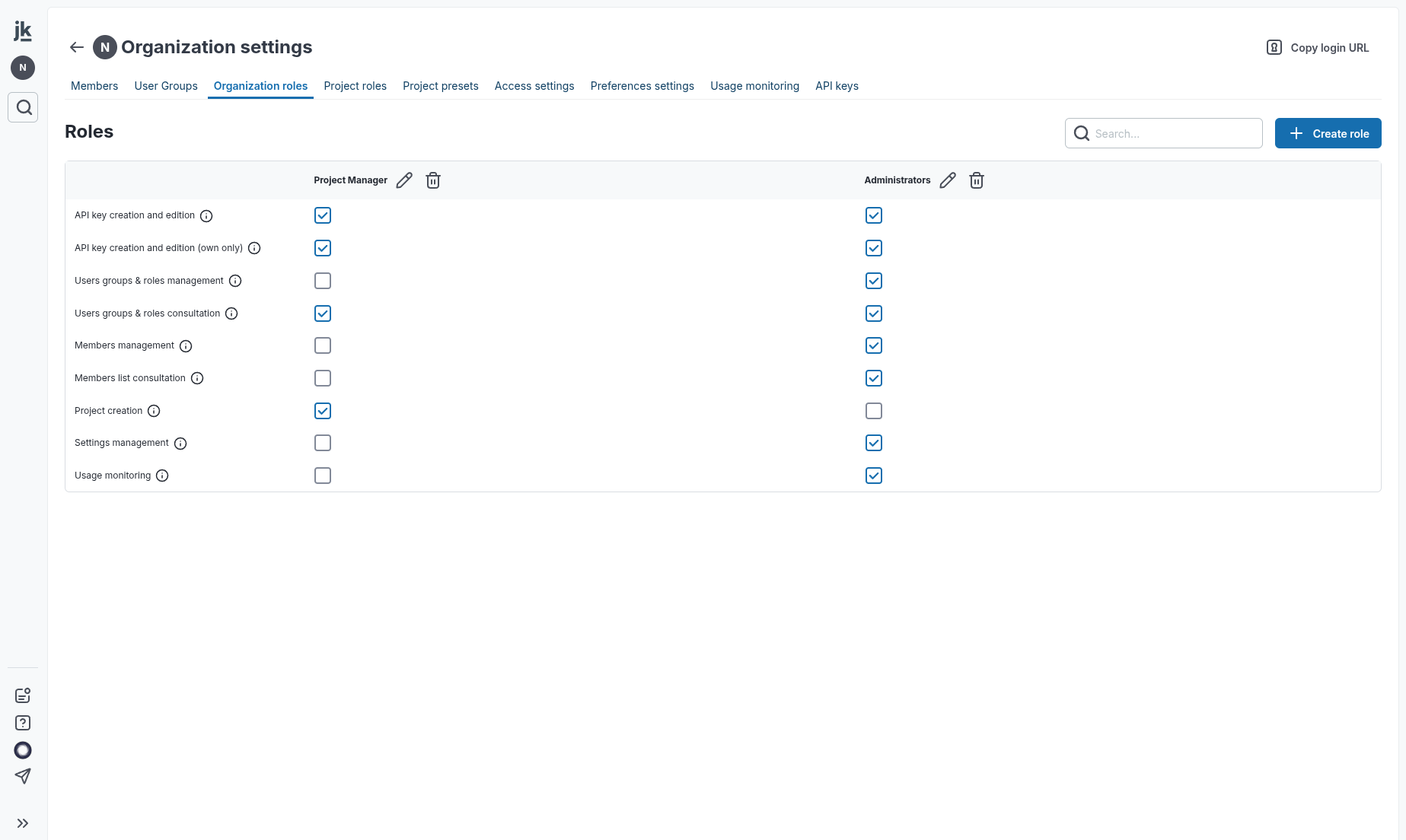
Manage roles and permissions.
Permissions overview
| Level | Permission | Gives the ability to |
|---|---|---|
| Org | API key creation and edition | Create and manage API keys at the organization level. These keys allow edition rights for all projects included in the organization. |
| Org | API key creation and edition (own only) | Create and manage API keys at the organization level, only for and by the active user. |
| Org | Users groups & roles management | Create and manage users groups. This includes adding and removing users to groups, as well as assigning roles to the groups. |
| Org | Users groups & roles consultation | Browse users groups and roles, but not to manage them. |
| Org | Member management | Assign a member to a user group. |
| Org | Members details | Consult a member's user groups, roles and projects. |
| Org | Project administration | Create a new project in your organization, assign members to it and manage settings. |
| Org | Settings management | Manage your organization's settings, which include access strategies and preferences management. |
| Org | Usage monitoring dashboard | Monitor the tokens usage for the organization, with segmentation per simulations, calibrations and AI usage. |
| Proj | API key creation and edition | Create and manage API keys at a project level. |
| Proj | API key creation and edition (own only) | Create and manage API keys at a project level, only for and by the active user. |
| Proj | Project items creation and edition | Create and edit any project items in a project. |
| Proj | Project items creation and edition (own only) | Create and edit only an active user's own project items in a project. This user cannot edit other users' project items with only this permission. |
| Proj | Project items export | Export project items, such as results from a simulation, a model, a virtual population, documents and papers. |
| Proj | Project items consultation | Browse and consult project items, but not to edit them. |
| Proj | Settings management | Manage a project settings, which include members management, preferences and templates. |
| Proj | Templates creation and edition | Create templates (such as documentation) in a project, for use by all members of the project. |
| Proj | Comments posting | Create comments and discussions, and to participate to any discussion in a project. |
| Proj | Comments consultation | Consult discussions in a project. |
Managing user groups and assigning roles in the organization and in projects
Administrators have the ability to create any user group for their organization, in the user groups tab in Organization settings. Existing users can then be assigned to these groups (note that if you need to add new users, you can do so from the Members tab).
Managing user groups in the organization settings
Organization roles can be added directly in the user groups tab in the Organization settings (below):
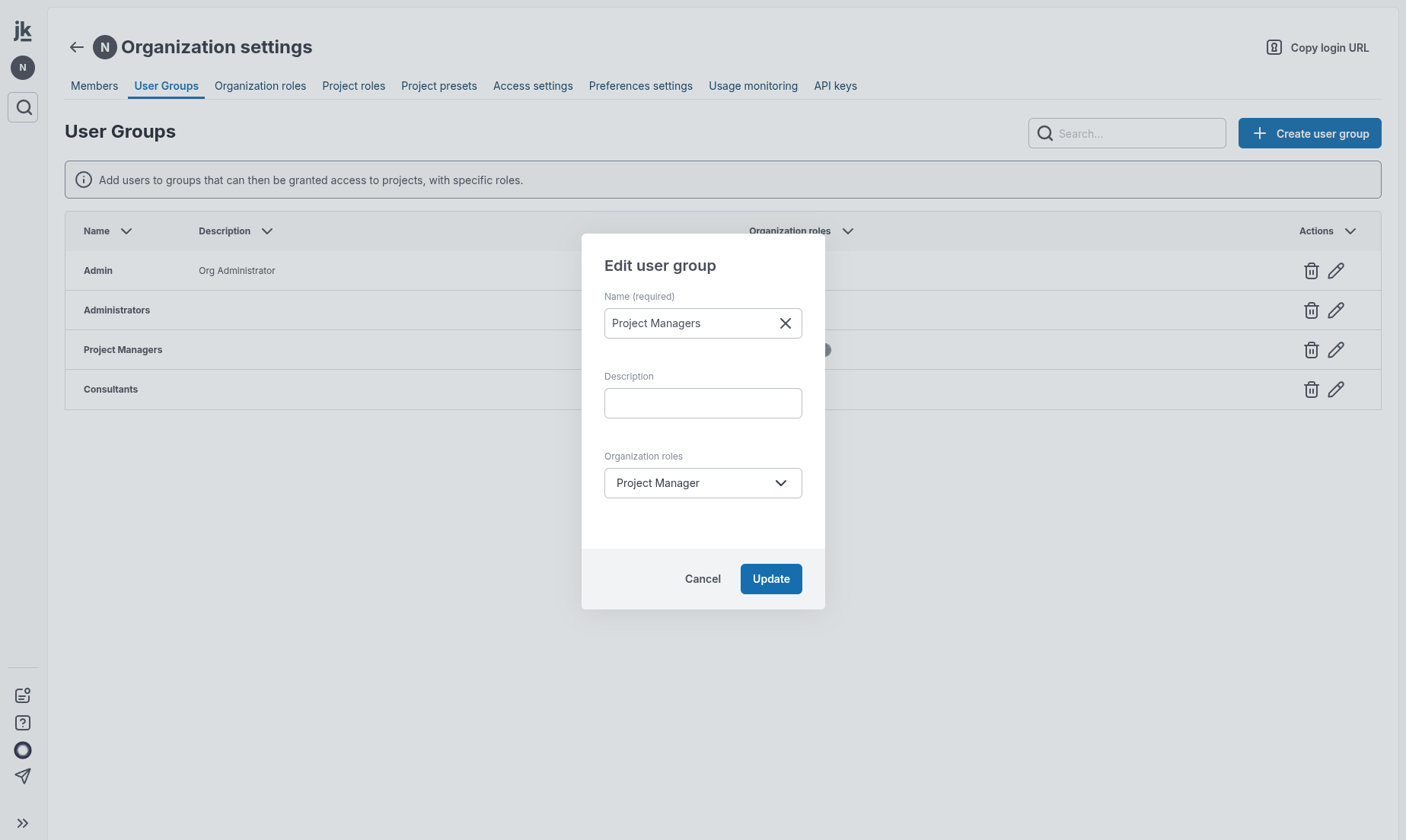
Add one or multiple organization roles to user groups.
Managing user groups in projects
User groups added to project need to be assigned directly in project settings (or when creating the project). Note that it is possible to assign different roles to a same user group in different projects.
ADD MODALE SCREENSHOT
Consult and edit a user's assignations:
From the members list, click on a user to see details on users groups and project assignements. It is possible to manage a given user's assignements directly from this screen.
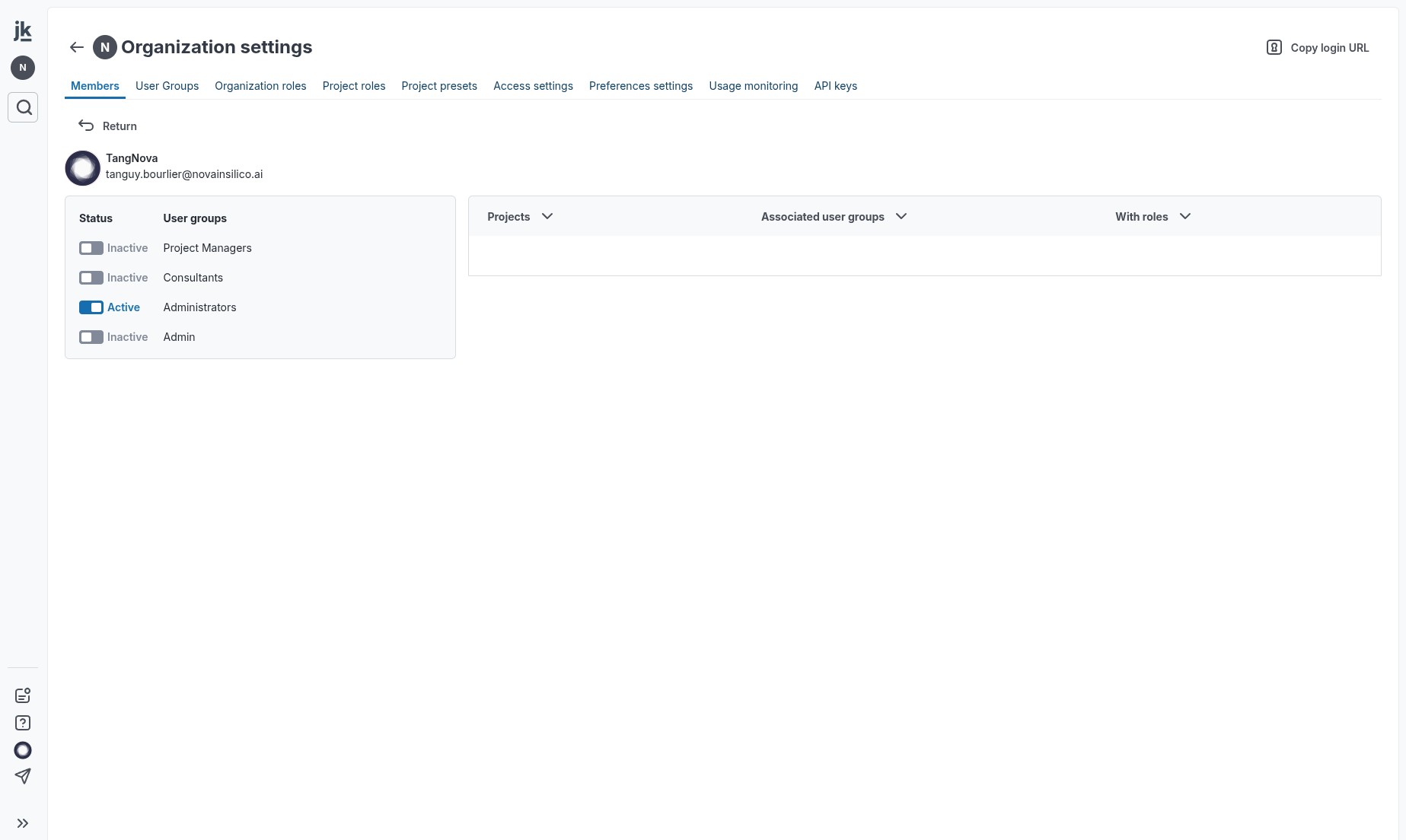
Add one or multiple roles to user groups.
Project presets
In addition to manual selection of user groups to be assigned in projects, it is possible to use project presets. A preset is a set of users groups with associated project roles, that can be selected when creating a project. Such a preset need to be created first by organization administrators, in the Project presets tab:
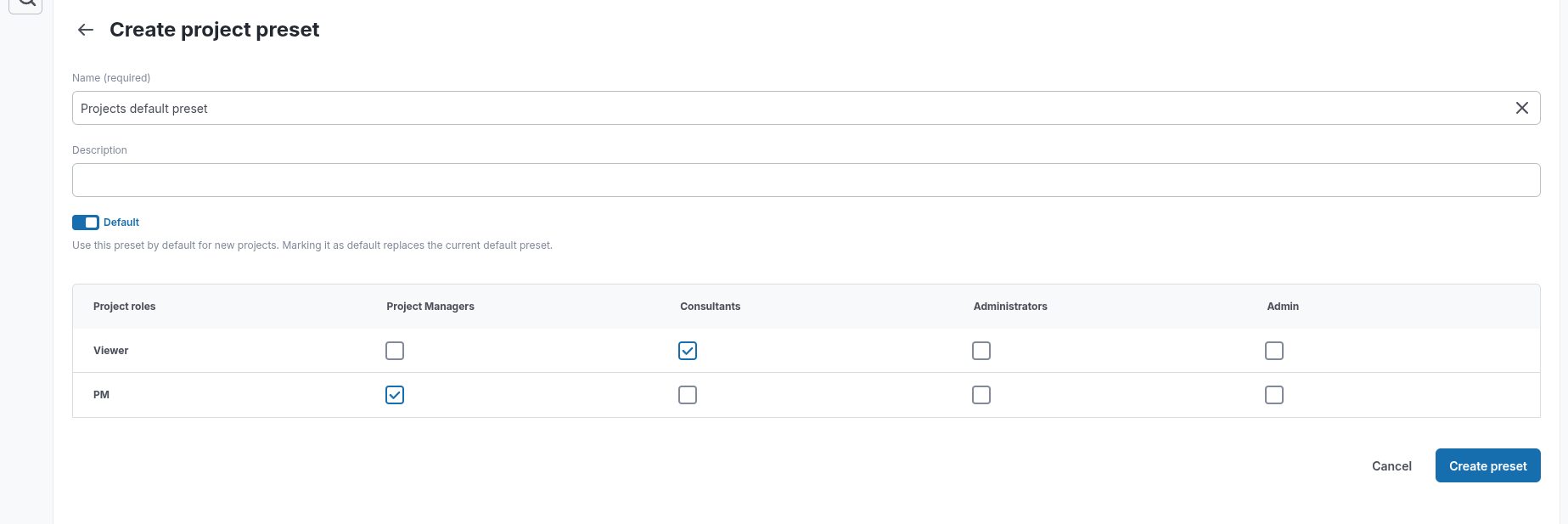
Create presets to facilitate the assignment of users to projects..
When creating a project, a preset can be selected (if a preset has been defaulted, it appears first in the list). Note that it is also possible to manually select user groups:
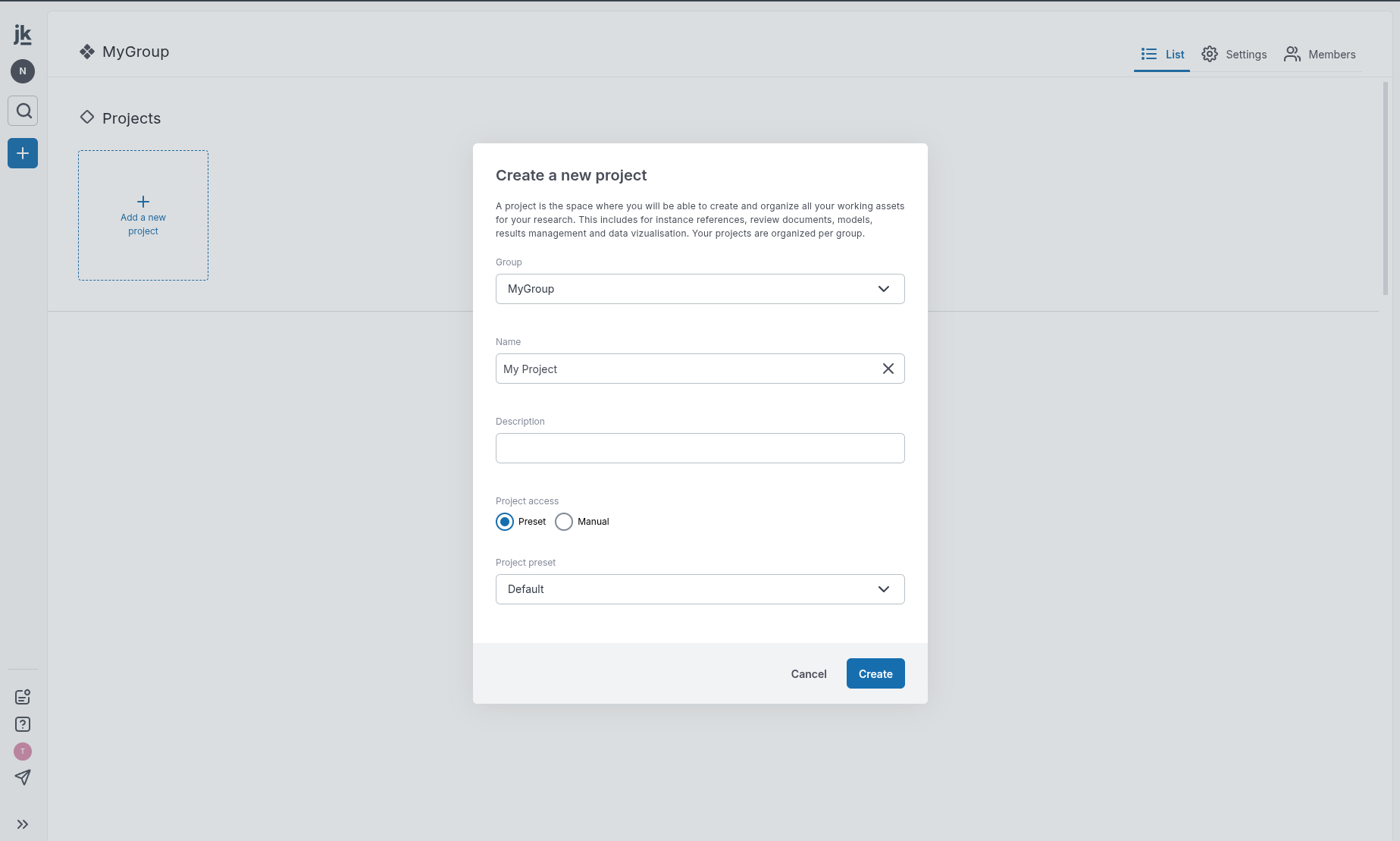
automaticaly add presets to your projects.