Access strategies: MS Azure Directory
To set up an access strategy to Jinkō using Microsoft Azure Directory you'll need to identify the corresponding credentials in your Microsoft Console and link Jinkō to your Azure application. This article walks you through this process.August 2025
Identifying your Microsoft Azure Directory credentials
To enable sign-in with Google for your organization, follow these steps:
- In your Microsoft admin center, please go to the application you have created in order to use MS Azure Directory: Home > Entreprise applications > All applications > App registrations > Your application.
- In the Overview tab, you will find your Application (client) ID and Directory (tenant) ID. You will need these values to create your SSO access in Jinkō.
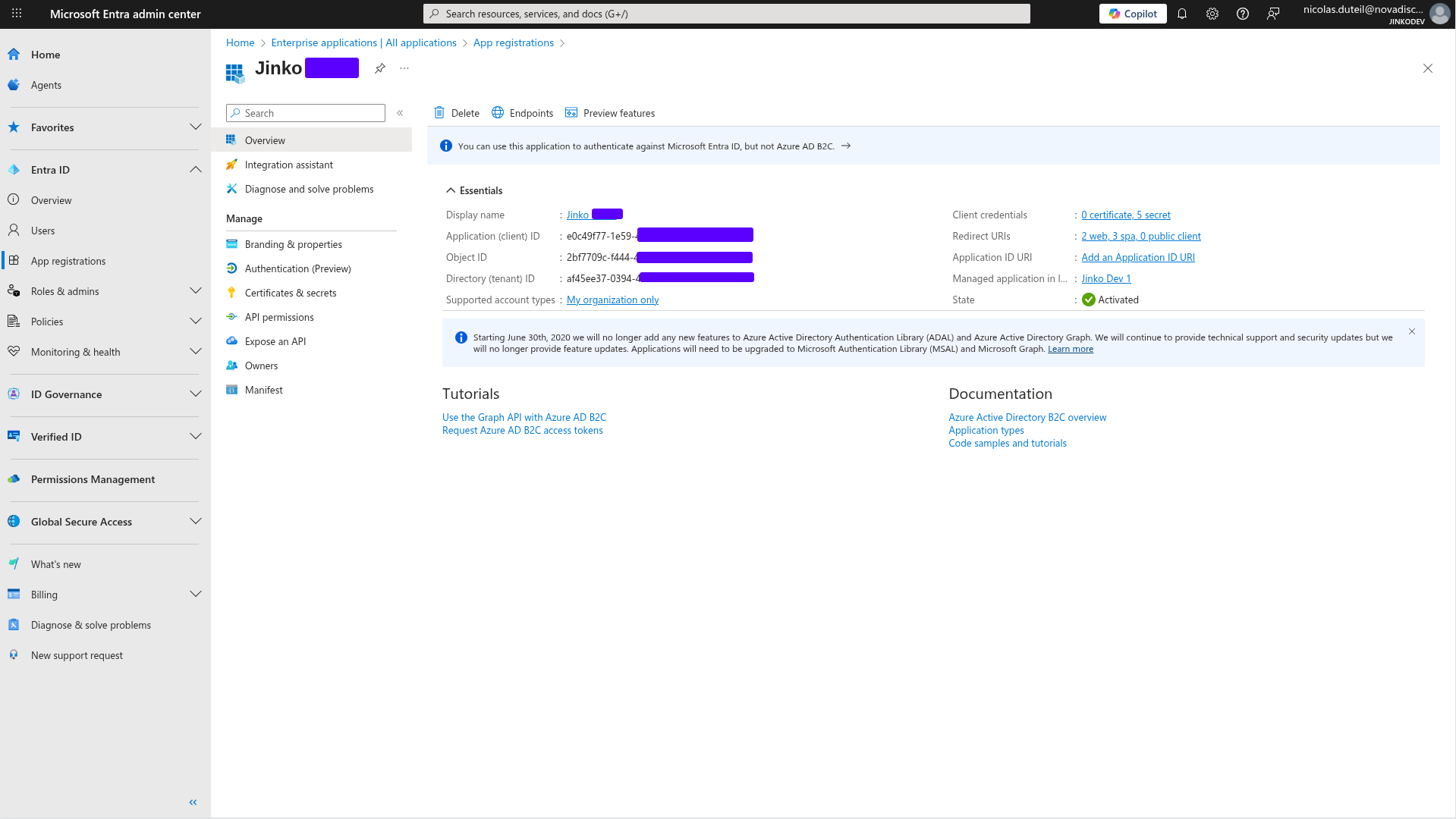
Finding your Microsoft Azure Directory credentials in the Microsoft admin center.
- To connect Jinkō to your Microsoft Azure Directory, you will also need to create a Client Secret. To do so, go to the Certificates & secrets tab, and click on New client secret. You can give it a name and set an expiration period. Once created, copy the value of the Client Secret, as you will not be able to see it again.
Adding a Microsoft Azure strategy in Jinkō
Once you have your credentials, you can set up the SSO access strategy in Jinkō:
- Go to Organization Settings → Access Settings
- Click Add Strategy
- Choose Microsoft Azure Directory
- Enter your Client ID, Client Secret, and Tenant ID (the Directory ID you found in the previous step)
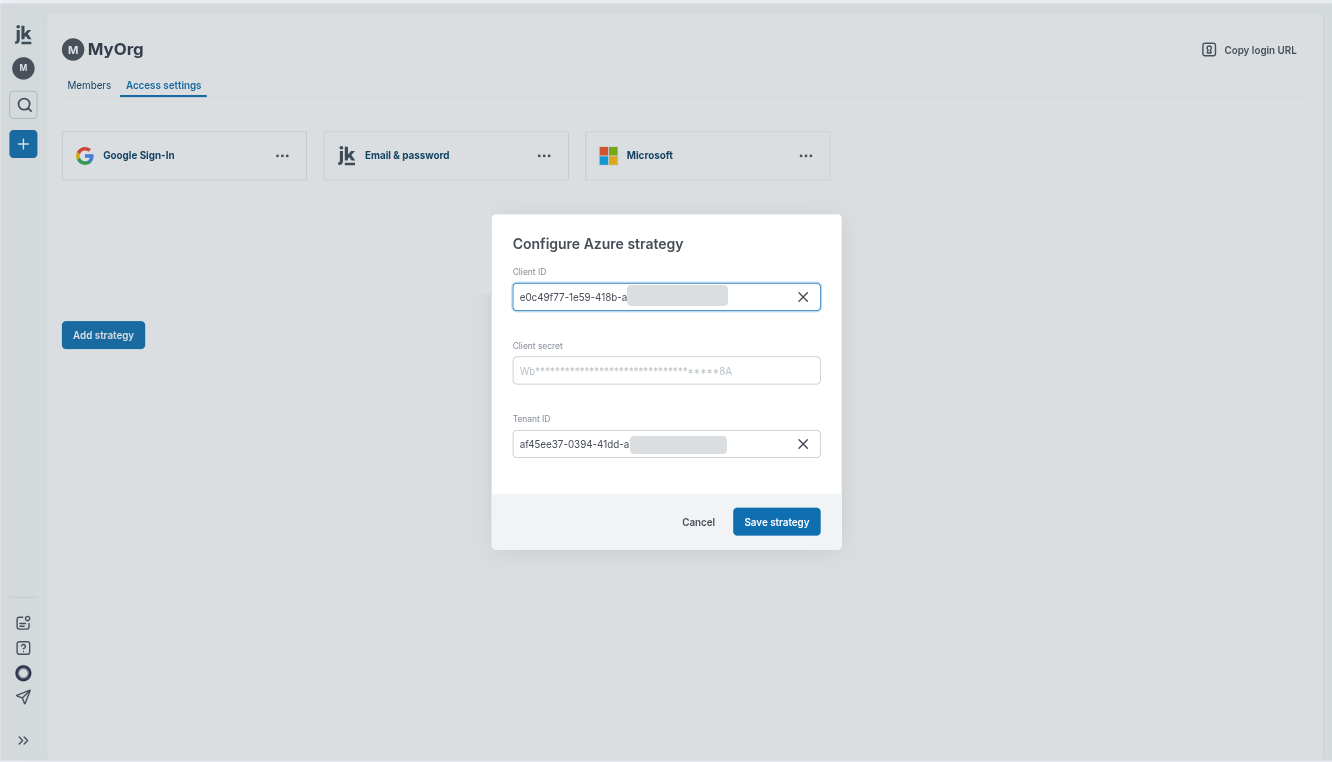
Enter your Microsoft Azure Directory credentials in Jinkō to enable SSO access.
Adding your Jinkō organization's URL and web redirect URIs to your Microsoft Azure Directory
- In your Microsoft admin center, go to the Authentication tab of your application.
- In the Redirect URIs section, add the URI provided by Jinkō upon addition of your MS Azure strategy (previous step). If you missed it, you can find it by clicking on the sub-meny of your MS Azure strategy in the Access Settings page of your organization.
- Then, in the 'Branding & properties' tab, add your Jinkō organization's URL in the Homepage URL field.
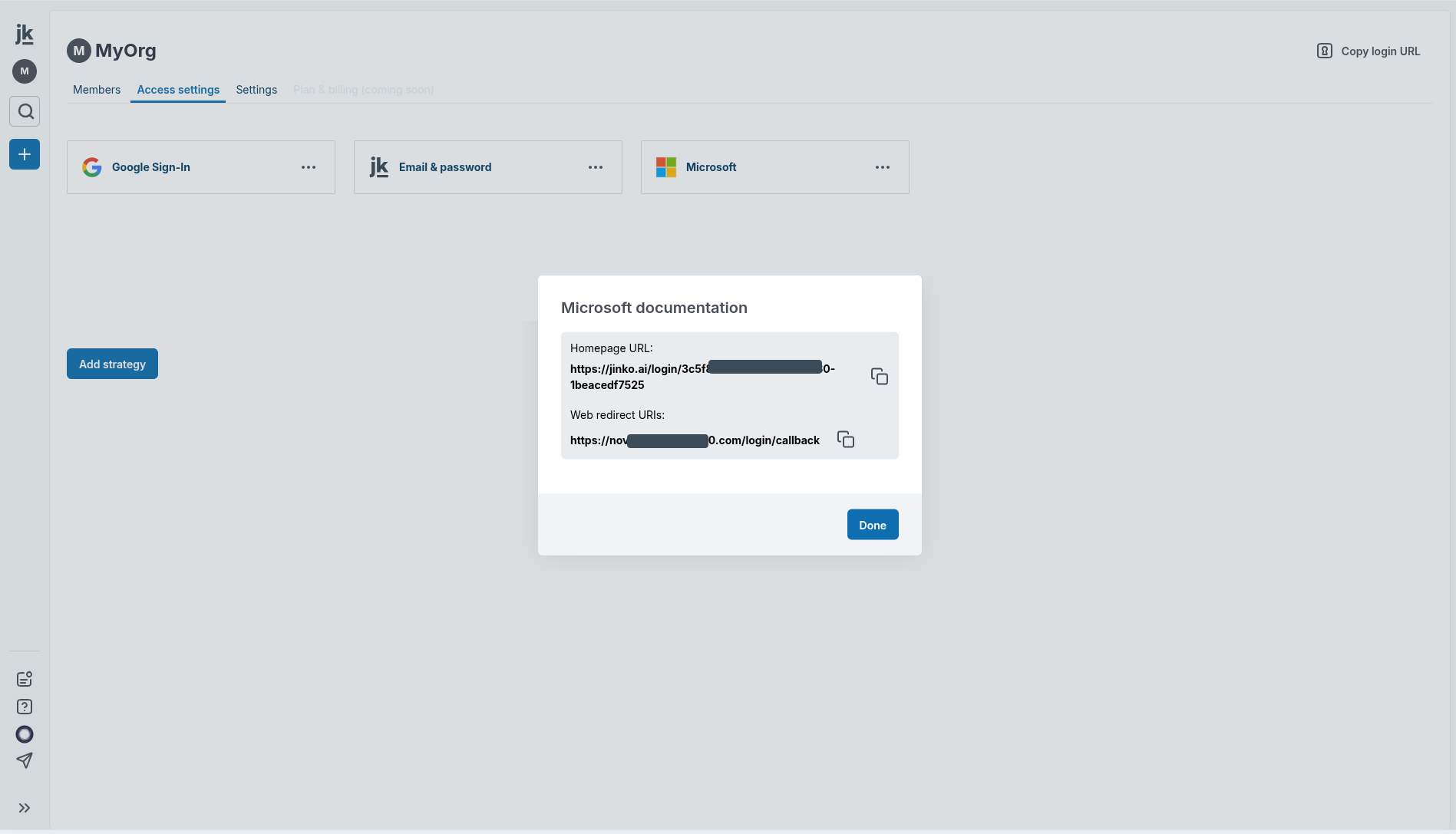
The following information appears once your keys entered: add Jinkō's information to your Microsoft Azure Directory.
Your Microsoft Azure access strategy is now active
A few last notes:
- Do not forget to enable the strategy by clicking on the Enable button in the Access Settings page.
- When SSO is enabled, only the organization creator is granted administrator access by default. All other members join as “Member” and must be promoted to Admin manually from the members tab.
- Make sure that your members have a valid Microsoft Azure account with the same email address as the one they use to log in to Jinkō.
- If you need to disable the strategy, you can do so by clicking on the Disable button in the Access Settings
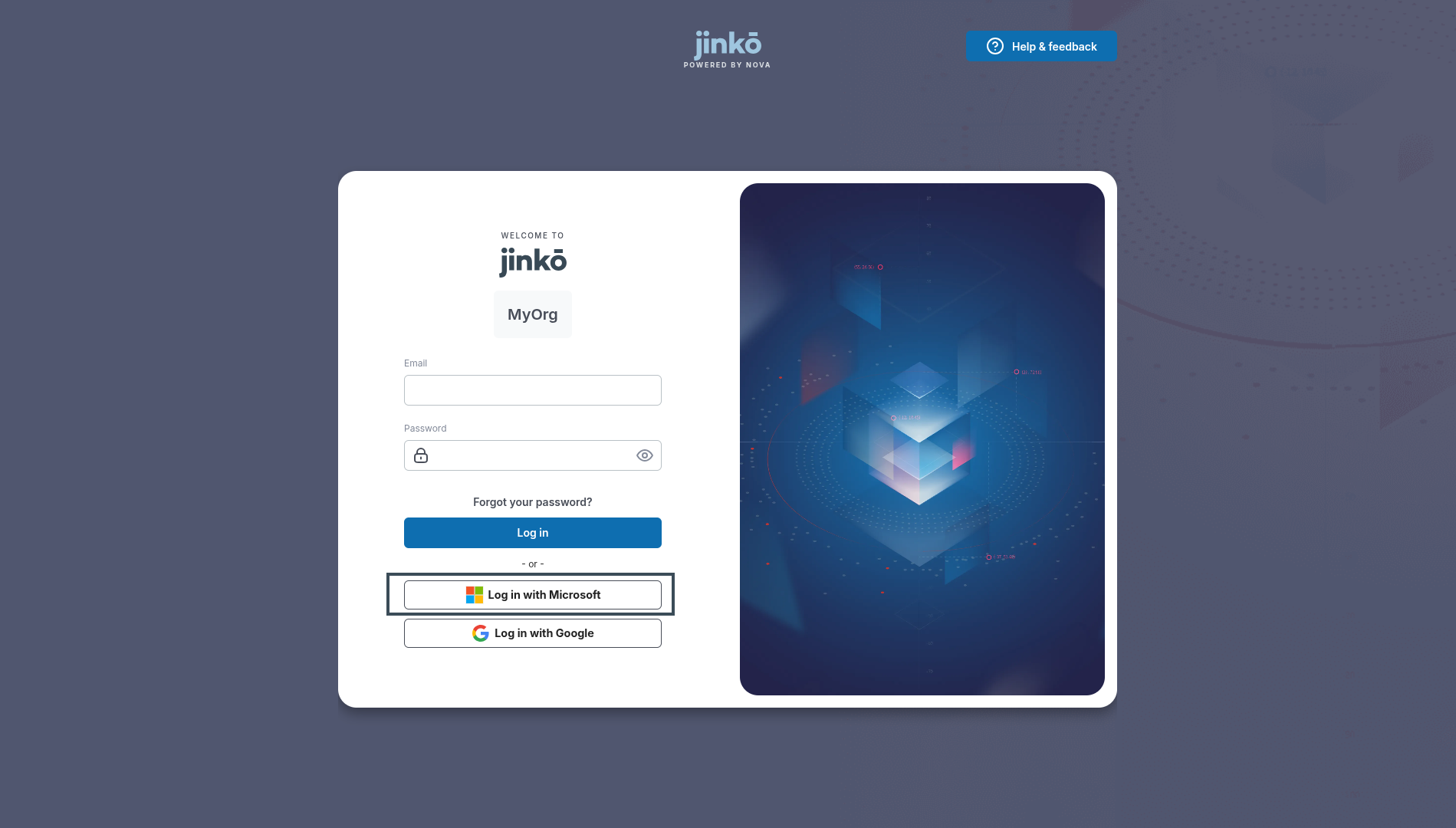
Your Microsoft Azure access strategy is now active! You can disable it at any time.