Access strategies: Google Sign-In
Before setting up a Google Sign-In or SAML access strategy in Jinkō, you'll first need to configure the corresponding credentials in your Google Console. This article walks you through both options.
Google Sign-In August 2025
To enable sign-in with Google for your organization, follow these steps:
Create OAuth credentials in Google Console
- Go to Google Cloud Console, and navigate to:
Menu → APIs and Services → Credentials - Click + Create Credentials and select OAuth client ID.
- For Application type, choose Web application, and give it a name.
You’ll then need to provide the following information:
-
Authorized JavaScript origins:
https://nova-prod.eu.auth0.com -
Authorized redirect URIs:
https://nova-prod.eu.auth0.com/login/callback
Once submitted, your Client ID and Client Secret will be generated.
Make sure to copy or download your Client Secret immediately. For security reasons, it will be hidden in the Google Console after a short time.
Restrict access to internal users
In the OAuth consent screen, under the Publishing status, ensure your User type is set to Internal. This restricts access to members of your organization.
Add the strategy in Jinkō
Now that you have your credentials:
- Go to Organization Settings → Access Settings
- Click Add Strategy
- Choose Google Sign-In
- Enter your Client ID and Client Secret
Your access strategy is now active for members of your organization.
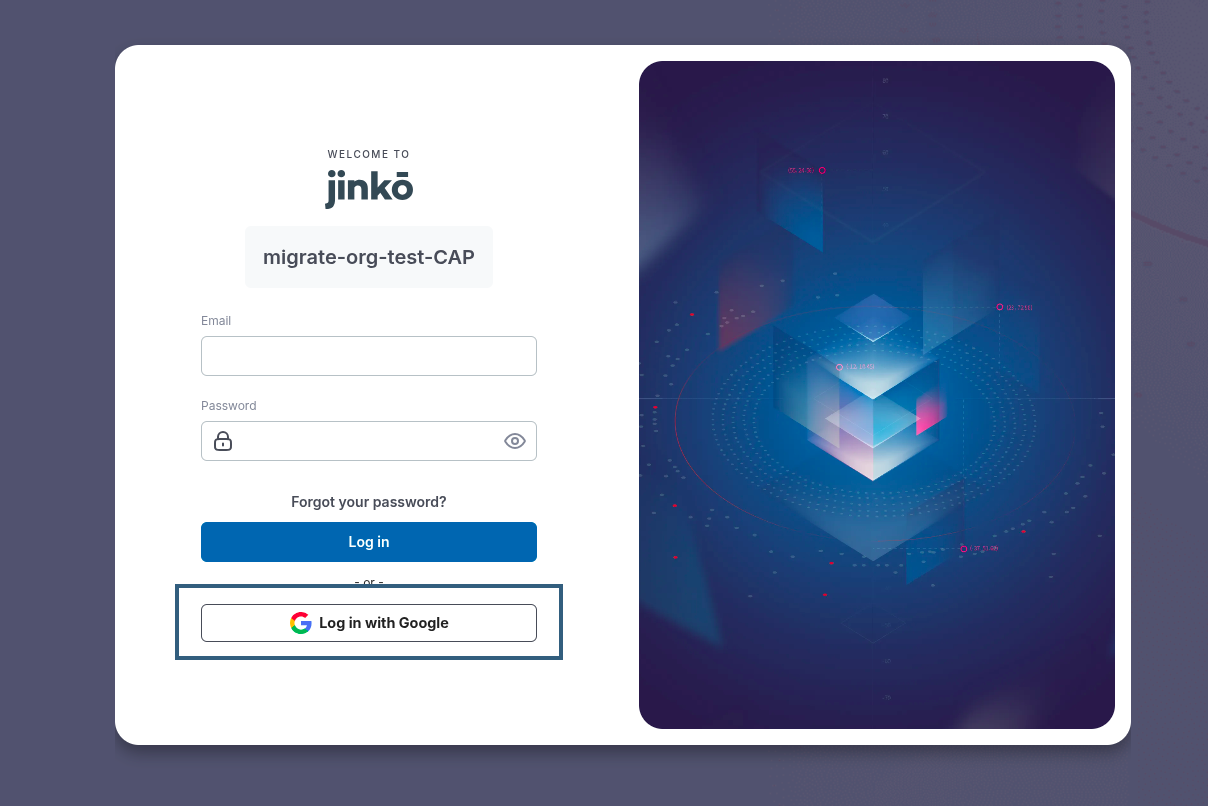
Members of your organization can now sign in using Google credentials.