Org settings & access control overview
Jinkō is a secure SaaS platform where access control is managed by organization administrators, and robust security settings are enabled by default.
Organization management July 2025
Available on Enterprise plans, Organization Management lets administrators define custom access for their members. This includes:
- Access management (email & SSO) with a dedicated login page for the organization
- Security settings
Access management
- Email access (enabled by default): administrators can invite new members by email. Invited users receive a link to set up their Jinkō account. (Initial administrators are added by Nova at subscription.)
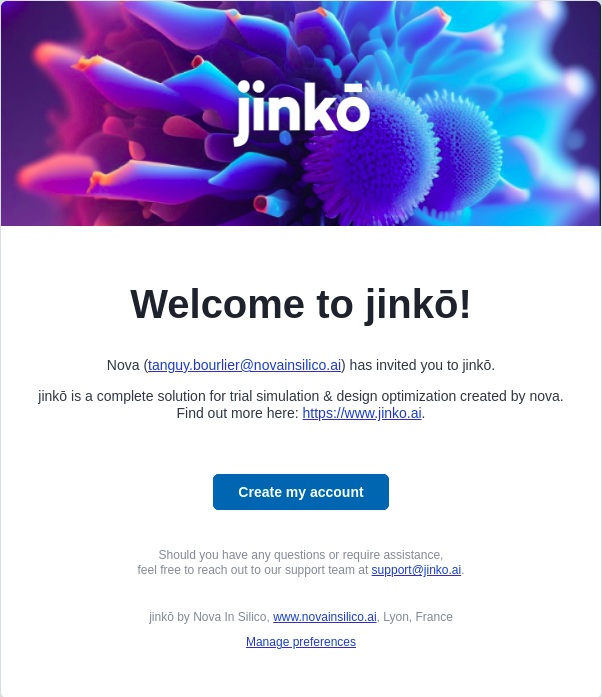
When invited, new members receive a welcome email with a link to set up their account.
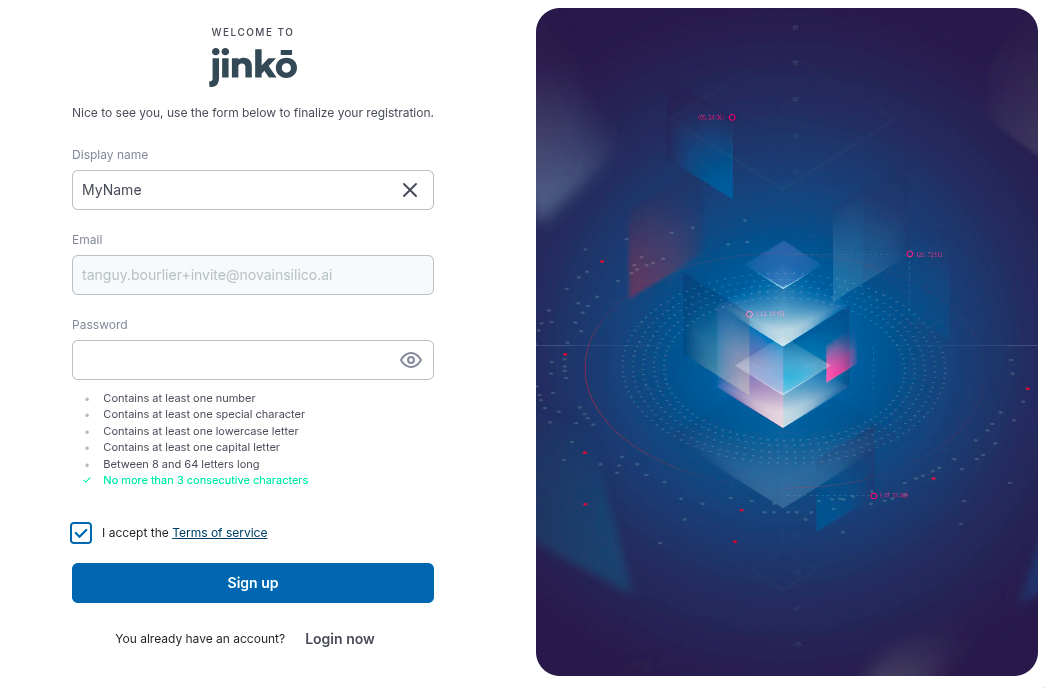
When they first log in, new members see a welcome screen where they can set their password and complete their profile.
-
SSO access: once configured, members sign in via their SSO provider. There are three options:
-
Google Workspace
Allow anyone at a specified@domainto sign in with Google Workspace. Admins must supply a Client ID and Client Secret. -
Google SAML
Restrict login to specified email addresses via Google SAML. Admins enter the SAML sign-in endpoint and signing certificate. -
Microsoft Azure Directory
Enable Microsoft Azure SSO. Admins provide a Client ID, Client Secret, and Tenant ID.
-
When SSO is enabled:
- Only the organization creator is granted administrator access by default.
- All other members join as “Member” and must be promoted to Admin manually.
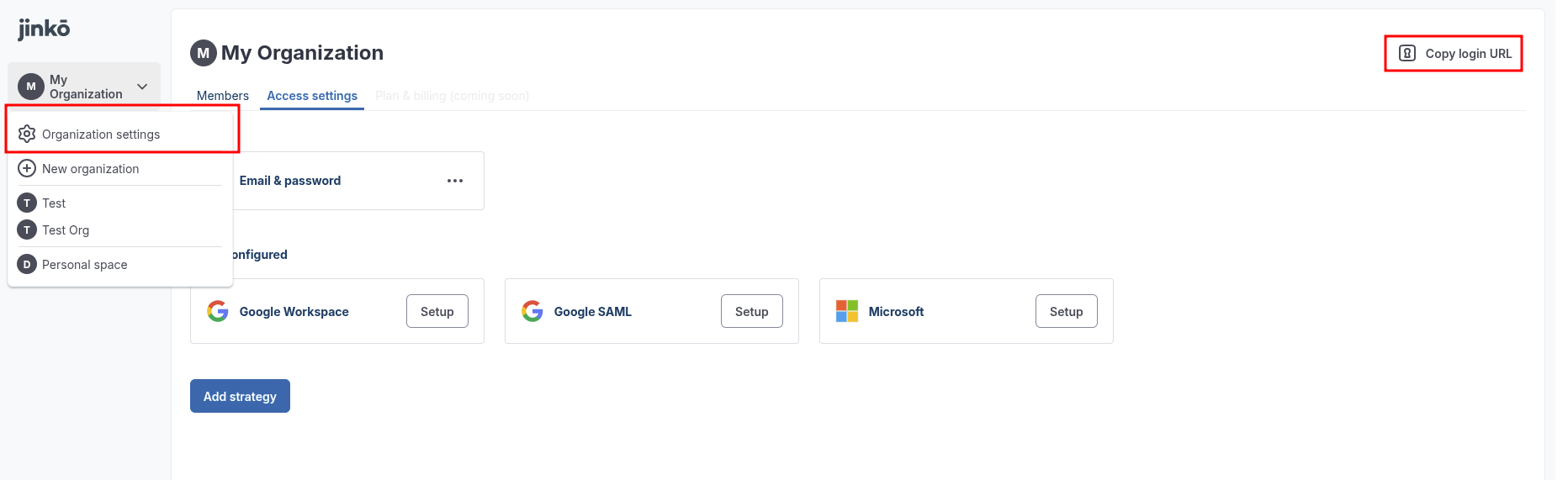
Go to Organization Settings → Access Settings, click Add Strategy, and follow the prompts.
Note the link to your organization’s dedicated login page, which you can share with members.
Security settings
- Auto-logout: users inactive for 30 minutes are signed out automatically.
- Two-factor authentication (2FA): required for all logins.
Configuration of these settings is allowed to organization administrators only. Q3 2025
Groups, projects, and member roles
You can organize work at two levels:
- Groups: containers for one or more projects, shared with invited members.
- Projects: hold all research and assets for a modeling or simulation effort.
Members can be added to both, with one of five roles:
| Role | Description |
|---|---|
| Admin | Full control: can add/edit any member or content, and create other Admins. |
| Editor | Can create/edit content and manage Commenters/Viewers. |
| Explorer | Can create, edit, and comment on own items; view others’. |
| Commenter | Can view and comment on any items. |
| Viewer | Can only view items. |
- A member added at the group level is automatically a member in all projects in that group and cannot be removed from the group by non-admin project members.
- It is not possible in a project to assign a role to a member that is lower than their role in the group.
- An Admin member may revoke her access only if at least another Admin remains.
- When an access for a user is created directly at the project level, the role granted cannot be reverted to a lower role (but it can be removed by an admin, and added back at any role level)
Adding members
To a group
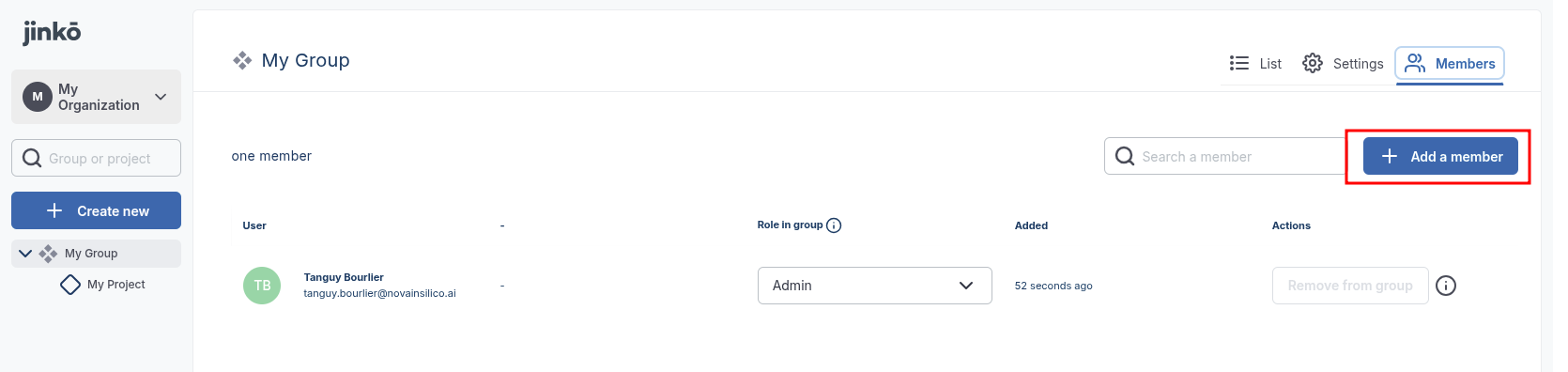
On your dashboard, open the group’s Members tab and invite new users by email.
To a project
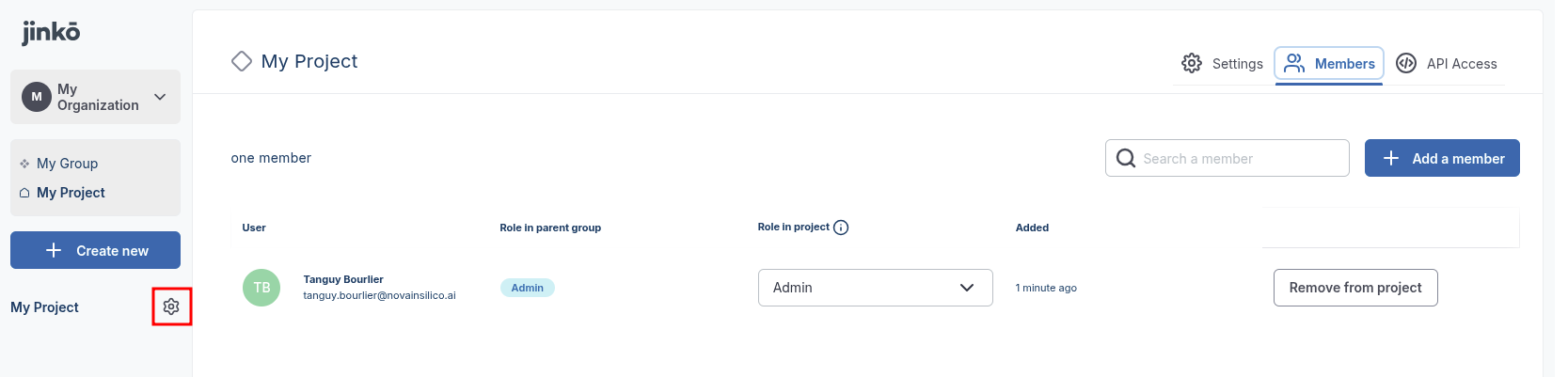
In the project’s Settings (cog icon), go to Members and invite by email.